Promote Students
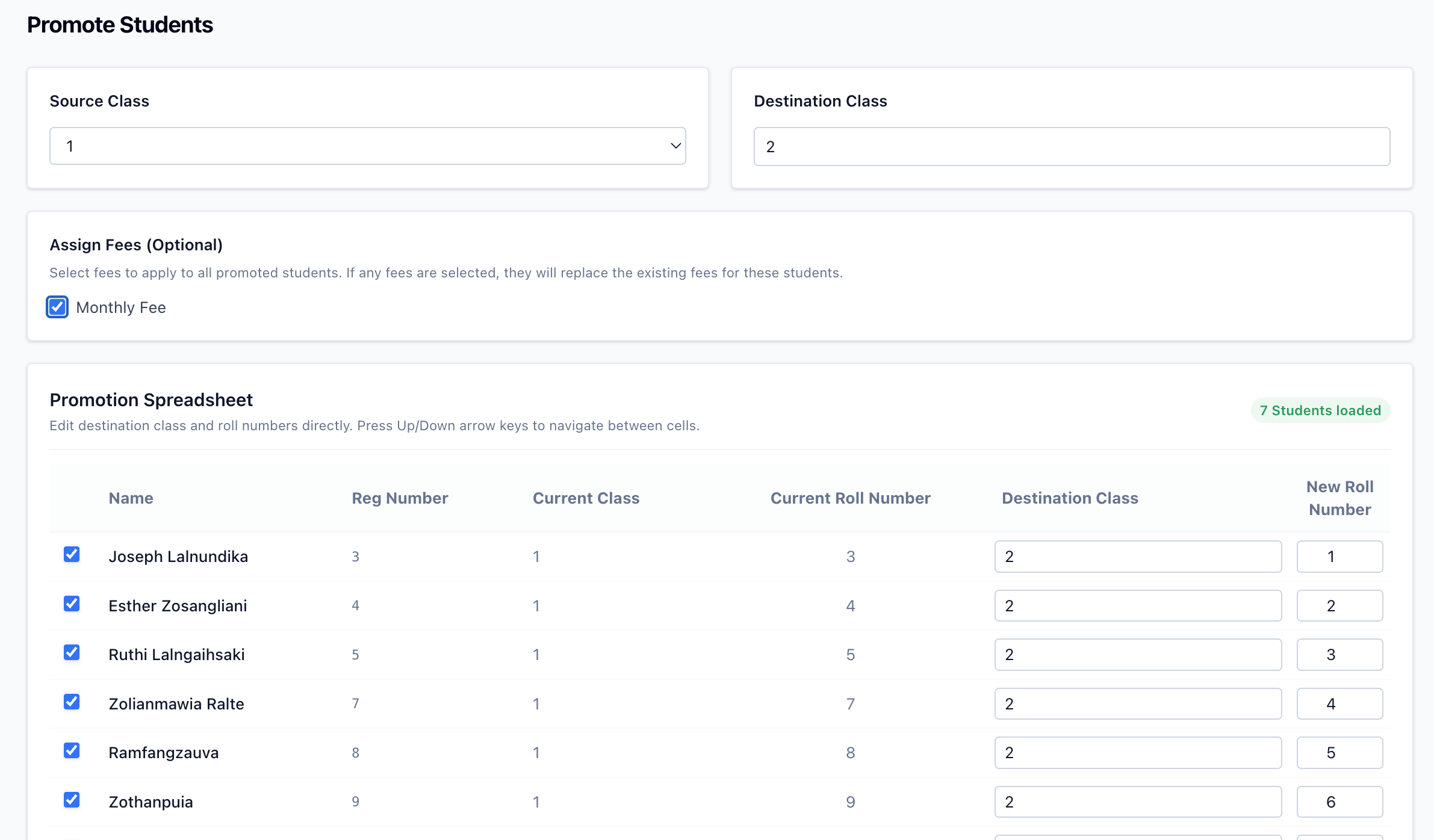
At the end of an academic year, the Promote Students page lets you move a whole class of students up to the next class in one step, assigning new roll numbers (and optionally new fees) as you go.
How it works
- Select the source class. Choosing a class loads all of its students into the table below.
- Review the students. Each row shows the student's name, registration number, current class and roll number, along with an auto-filled destination class and a new, sequentially numbered roll number.
- Select the destination class. Choose the class students are being promoted into (the source class is excluded).
- Adjust per student if needed. Tick or untick students to include them, and override the destination class or new roll number on any individual row.
- Optionally sync fees. If fees differ between levels, pick the fees to assign to the promoted students.
- Promote. A single action updates every selected student's class and roll number, and assigns the new fees if you chose any.
INFO
This page is only available for organisation types that use classes/groups (such as schools and coaching centres).