Fee Invoices
A fee invoice is created whenever a student is charged a fee for a particular period. The Fee Invoices page lists every invoice generated for your school so you can track, filter and collect payments.
The table
Each row shows the student's registration number and name (with their class and roll number), the invoice amount and fee type, the fee date and due date, and a colour-coded Payment Status badge:
| Status | Meaning |
|---|---|
| PAID | The invoice has been paid in full. |
| PENDING | No payment recorded yet. |
| PARTIAL | Part of the amount has been paid (only when partial payment is enabled). |
| VOID | The invoice was cancelled — usually because the fee was removed from the student. |
The status line also shows the total amount paid so far.
Filters
Use the filters above the table to narrow the list:
- Fee — show invoices for a single fee type.
- Fee Month — show invoices issued in a particular month.
- Status — filter by Paid, Pending, Partial or Void. There is also an Overdue (Pending & Past Due) option that shows only pending invoices whose due date has passed.
- Class — filter by class (shown only for schools that use classes).

Marking an invoice as paid
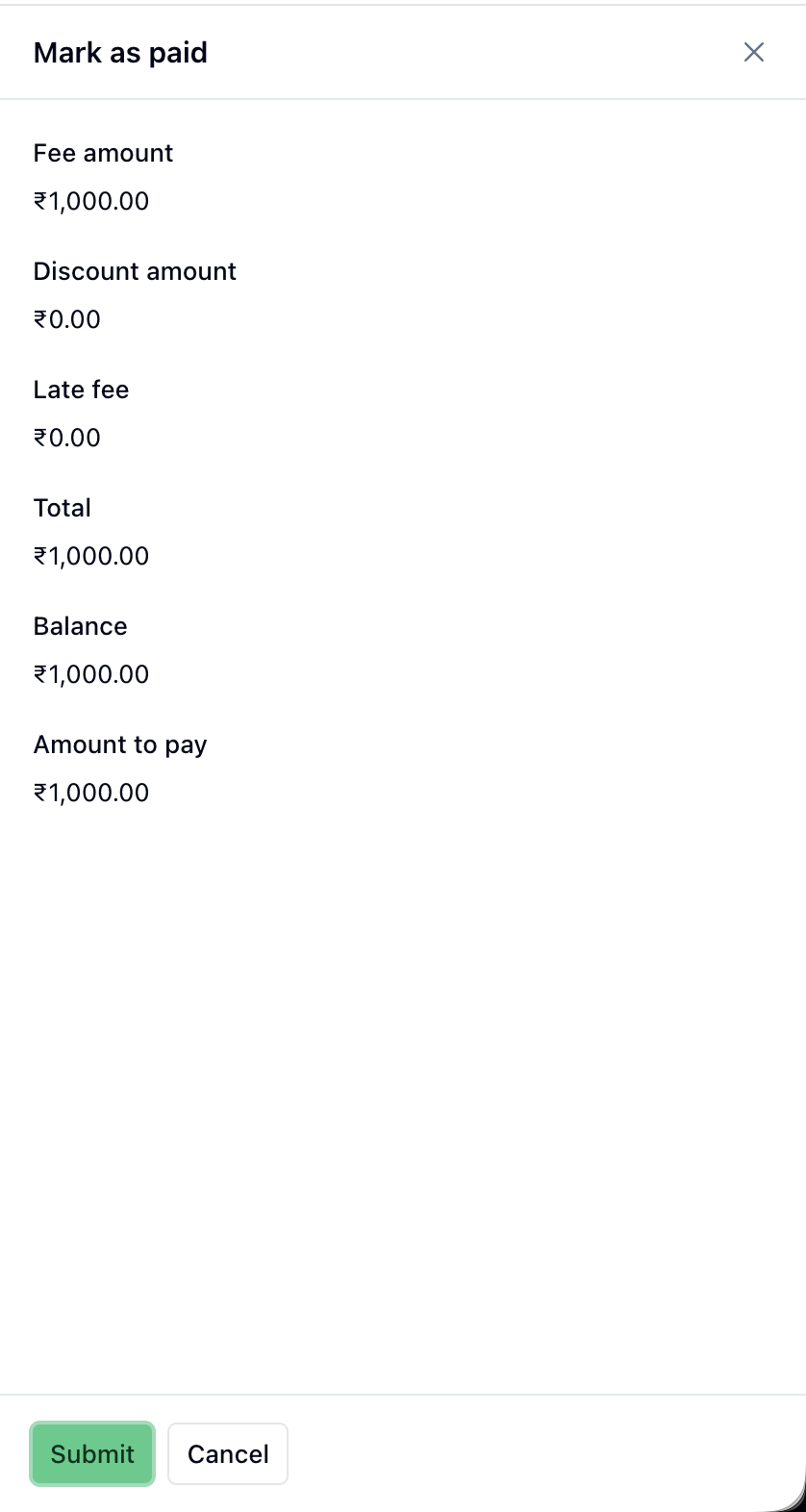
When a parent pays offline (for example, in cash at the school), use the Mark as Paid action on the invoice row. A panel opens showing the fee amount, any discount, the calculated late fee, the total, the amount already paid and the remaining balance.
- If partial payment is enabled in Settings, you can enter any amount up to the balance.
- If partial payment is disabled, the full balance must be paid.
Submitting records the payment, generates a receipt and updates the invoice status. The action is hidden once an invoice is fully paid or void.
You can also select several pending invoices and use the Mark as Paid in Full bulk action to settle them all at once.
Generating invoices
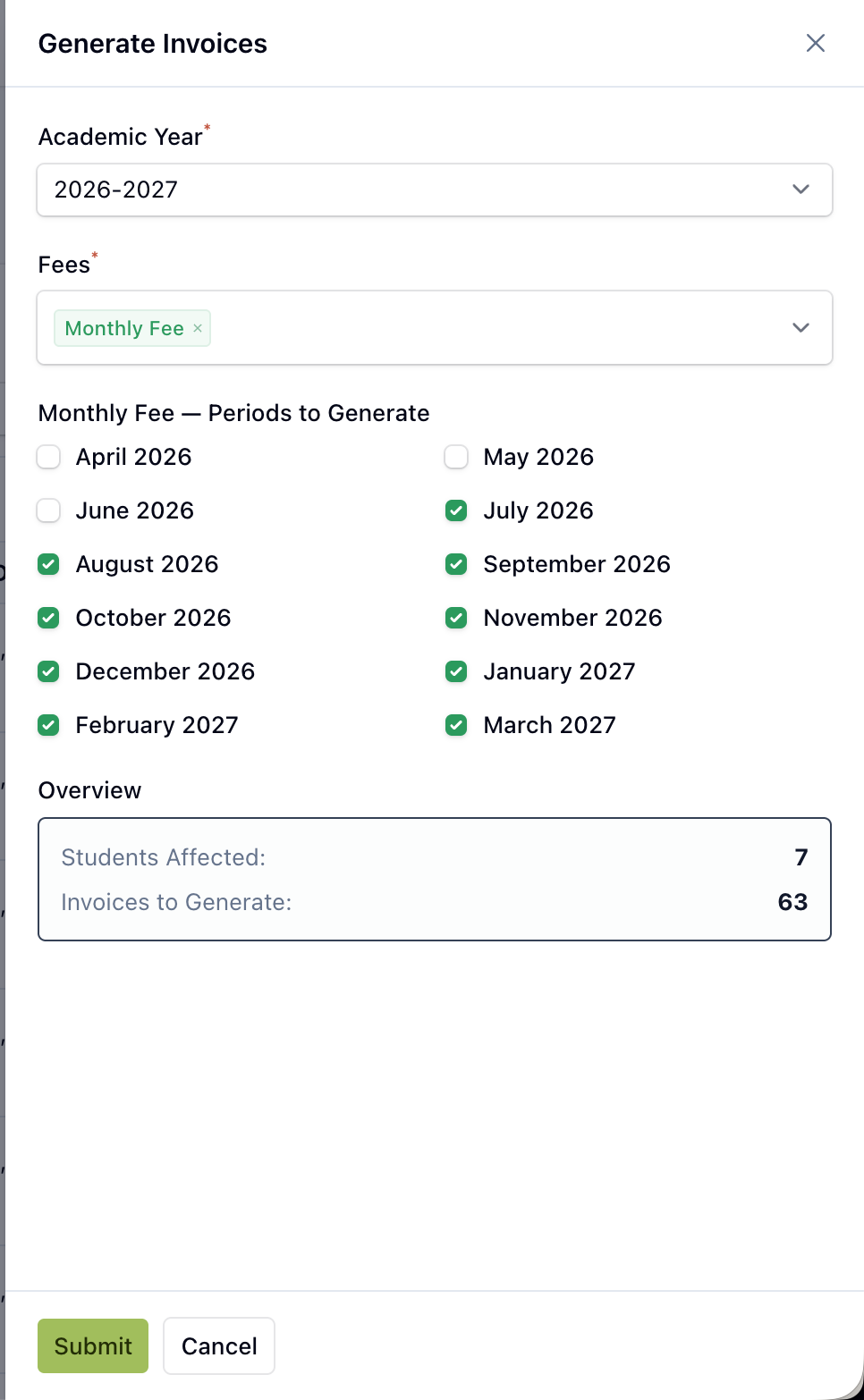
Use the Generate Invoices button at the top of the page to create invoices for one or more fees.
- Academic Year — defaults to the current academic year.
- Fees — select which fees to generate invoices for.
- Periods — for each fee, pick the periods to generate. Monthly/quarterly fees show a checkbox list of periods (e.g. January 2025, Jan – Mar 2025); yearly fees show a single month to bill.
- Overview — the form shows how many students will be affected and how many invoices will be created before you confirm.
Invoices are created in the background and appear in the list a few moments later.
INFO
Invoices can also be generated for a single student from the Invoices tab on that student's detail page. The due date of each invoice is calculated from the fee's days till due setting. See Fee Settings.